Multi Trainee Pack + Server Guide
Getting Started
-
Launch the Server Application:
- Open PROSERVE on the SERVER machine.
- Ensure the server is running before proceeding to launch the trainee packs.
-
Launch All Trainee Packs:
- Start the trainee pack applications on individual trainee machines.
- Log in to each trainee pack as described below.
Server Setup
Logging in as Instructor
- Click on the Instructor button.
- You will be automatically logged in as the instructor with full access to all related features.
Instructor features
- Select and manage training scenarios.
- Start a scenario automatically when all trainees are ready or manually initiate it.
- Additional views during sessions:
- Free view
- Top view
- Trainee POV
- Use the keyboard and trackpad or mouse to change position and point of view
- Enable or disable shot traces
- Force the scenario to end when necessary

Trainee Pack Setup
Logging in as a Trainee
-
Access the Trainee Pack:
- Click on the Trainee button.
-
Enter Credentials:
- Provide your username and password to log in.
-
Important Note:
- If you previously used the system in Solo Mode, you may need to recreate your account.
- When connected to the server, the server database will be used.
-
Reusing Your Account:
- Your account will remain accessible in the same way for future use with the trainee pack.
-
Starting a Scenario
- While the instructor selects the scenario, trainees can change their equipment and character
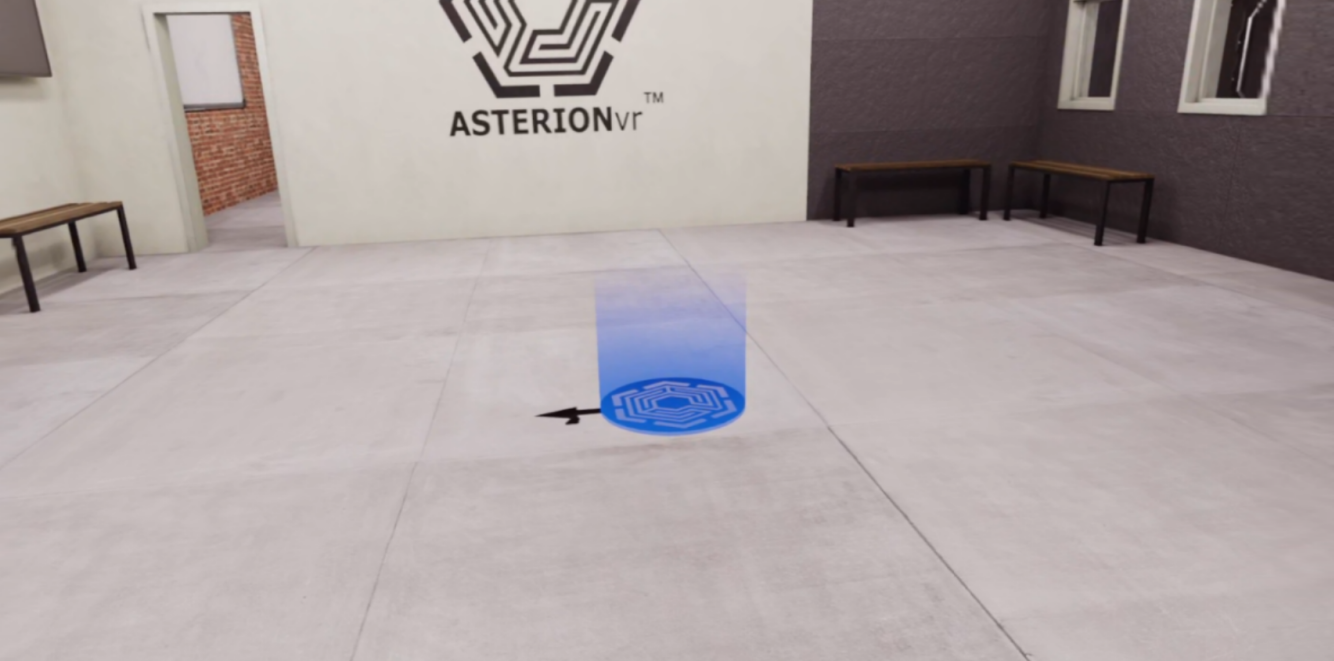
- Clicking the "Launch" button will transport the player to a VR waiting room.
- Trainees should position themselves correctly at the designated starting location, marked by a blue circle on the floor.