Charging VR Equipment
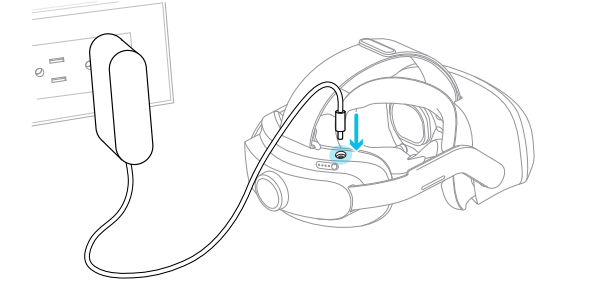
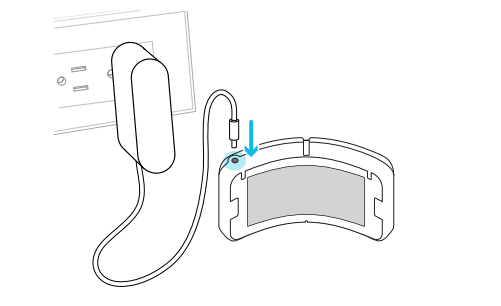
Checking the Headset Battery Level
To check the battery level of the headset:
- Perform a short press of the button located on the back of the headset or the secondary battery.
- Recharge the batteries when necessary.

Checking and Charging the Trackers
Checking Tracker Charge Levels
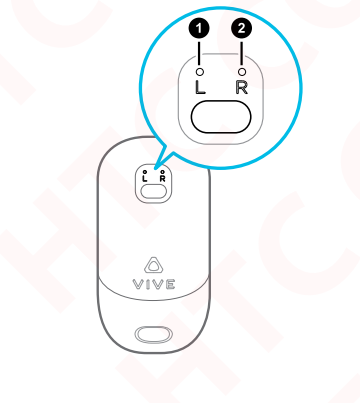
- Perform a short press of the button on each tracker to check the battery level.
- The trackers will display a solid blue or green LED if sufficiently charged.
- If the trackers do not light up or display a solid amber LED, they must be recharged.
Charging the Trackers
- Use a USB-C cable to recharge the trackers when required.

Notes
- Ensure the headset and trackers are fully charged before use to avoid interruptions.
- Refer to the tracker LED chart for detailed information about battery status.
| Status | LED Behavior |
|---|---|
| Low Battery | Blinks red |
| Charging | Solid amber |
| Fully Charged | When connected, solid amber to solid green. When not connected, solid amber to solid blue |
| Pairing | Blinks blue |
| Connecting | Solid blue |
| Connected | Solid green |